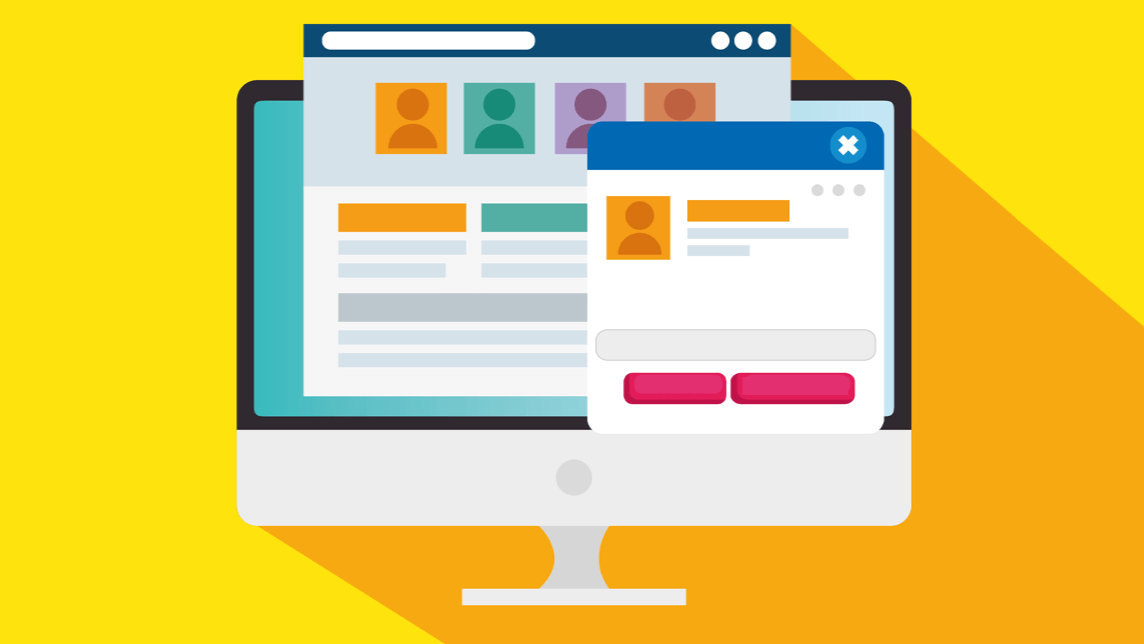
Make Your Website Popups Work for Everyone: An Accessibility Guide
Website popups have earned a complicated reputation. They can boost conversions, share critical information, and drive newsletter signups—but they can also frustrate users, especially those relying on assistive technology. The good news? Accessible popups are absolutely achievable when you know what to watch out for.
Why Popups Often Create Accessibility Barriers
Popups frequently cause problems for people using screen readers, keyboard navigation, or other assistive technologies. Here’s what typically goes wrong:
Focus Management Issues When a popup appears, keyboard users and screen reader users need their focus to automatically move to the popup content. Without this, they might not even know the popup exists—they’re still “stuck” on the underlying page, unable to interact with what just appeared on screen.
Keyboard Traps Ever tab through a popup only to find yourself cycling endlessly through its buttons with no way to escape? That’s a keyboard trap, and it’s one of the most common accessibility violations. Users must always have a clear way to close the popup and return to the main content.
Missing Context Screen readers need to announce what just appeared and why. Without proper labeling and role assignments, a popup might just suddenly interrupt navigation with no explanation—imagine someone unexpectedly tapping you on the shoulder without saying why.
Visual-Only Triggers Popups that appear based solely on visual cues (like scrolling to a certain point) can surprise screen reader users who have no warning. Time-based popups that appear automatically can be particularly problematic if they don’t give users enough time to read and respond.
Essential Elements of Accessible Popups
Making popups accessible doesn’t require complex development—it’s about following a few key practices:
Proper Focus Management When your popup opens, focus should immediately move to the popup container or its first interactive element. When someone closes the popup, focus should return to wherever they were on the page. This creates a predictable, logical flow.
Clear Escape Routes Users need multiple ways to close your popup: a visible close button, the Escape key, and clicking outside the popup (though this last option should be optional, not required). Never force users into one specific method.
Semantic HTML and ARIA Roles Use proper ARIA role=”dialog” or role=”alertdialog” attributes so assistive technology can announce the popup correctly. Include aria-labelledby to reference your popup’s heading, giving users immediate context about what the popup is for.
Keyboard Navigation The Tab key should move through all interactive elements within the popup in a logical order. Shift+Tab should move backward. And crucially, tabbing shouldn’t escape the popup until the user explicitly closes it—but they must always be able to escape using the Escape key.
Descriptive Content Your popup heading should clearly explain its purpose. “Newsletter” is vague. “Subscribe to monthly accessibility tips” tells users exactly what they’re looking at and what they’re being asked to do.
Testing Your Popups for Accessibility
You don’t need expensive tools or specialized knowledge to catch most popup accessibility issues. Here’s a practical testing approach:
The Keyboard Test Disconnect your mouse (seriously, unplug it). Navigate to your popup using only Tab, Shift+Tab, and Enter. Can you reach the popup? Navigate through all its elements? Close it? Return to where you were? If you can’t accomplish all of this with just your keyboard, you have accessibility issues.
The Screen Reader Test Turn on your operating system’s built-in screen reader (NVDA on Windows, VoiceOver on Mac) and trigger your popup. Does the screen reader announce that a dialog has appeared? Does it read the popup’s purpose? Can you navigate its contents and close it using only the screen reader? This reveals what blind users will experience.
The Timing Test If your popup appears automatically, time how long it stays visible or how quickly users must respond. WCAG guidelines require that users have control over time limits. Can someone pause, extend, or dismiss the timing? Do they have at least 20 seconds to read and respond?
The Context Test Close your eyes and have someone read only what the screen reader would announce. Does it make sense? Is it clear what just appeared and what action is being requested? If the audio-only experience is confusing, your popup needs work.
Better Alternatives to Popups
Sometimes the best accessible popup is no popup at all. Consider these alternatives:
Inline Banners Place your message directly in the page flow rather than overlaying it. Users encounter it naturally as they navigate, with no interruption or confusion. This works especially well for non-urgent information.
Dedicated Sections For newsletter signups or important announcements, create a prominent section on your page. Make it visually appealing and easy to find, but let users discover it on their own terms rather than forcing the interruption.
Progressive Disclosure Use expandable sections or accordion interfaces that users can open when they’re ready. This gives you the prominence of a popup without the accessibility headaches.
Notification Badges Small, persistent indicators (like notification dots) can draw attention without disrupting the user experience. Users can choose to engage when convenient.
When You Should Avoid Popups Entirely
Some situations warrant skipping popups altogether:
Critical User Tasks Never interrupt someone completing an important form, making a purchase, or performing time-sensitive work. Popups during checkout, registration, or urgent tasks frustrate all users but especially harm those using assistive technology who must navigate away from their task, deal with the popup, then find their way back.
Mobile Experiences Popups on small screens create amplified accessibility problems. Screen real estate is limited, touch targets get cramped, and keyboard users on mobile devices face even more navigation challenges. The mobile experience often warrants more subtle approaches.
Multiple Popup Scenarios Layering popups creates navigation nightmares. If you’re tempted to show multiple popups on the same page or stack them on top of each other, step back and reconsider your strategy entirely.
Cookie Consent Combined with Marketing If you’re already showing a cookie consent banner (which is essentially a popup), adding marketing popups creates accessibility chaos. Handle necessary legal requirements first, marketing messages second—or better yet, integrate marketing messages directly into your page content.
The Bottom Line
Accessible popups require thoughtful implementation, but they’re absolutely achievable. Focus on clear communication, predictable behavior, and user control. Test with real assistive technology. And always ask: do we actually need this popup, or is there a better way?
Your website’s accessibility isn’t just about legal compliance—it’s about creating experiences that work for everyone. When you make popups accessible, you improve usability for all users, not just those with disabilities. That’s a win worth pursuing.